
Discover the best laptop upgrade ideas for Europeans in 2026, from RAM and SSD upgrades to batteries, cooling, AI performance, repairability, and smart cost-saving tips.
If your laptop still works well but feels slower than it used to, 2026 may be the perfect year to upgrade it without immediately buying a completely new machine. For many European users, laptop upgrades in 2026 are becoming more attractive because modern laptops are increasingly expensive, while better storage, memory, batteries and accessories can significantly extend the usable life of an existing device.
The right upgrade depends on your laptop model, age, operating system and the type of work you do. A student writing assignments in Berlin has very different requirements from a video editor in Paris, a software developer in Amsterdam or a business professional working remotely in Madrid.
There is also a broader European shift toward longer-lasting and more repairable electronics. The European Commission’s repair policy is designed to encourage repair and reuse, with EU member states required to apply the right-to-repair directive from 31 July 2026. (European Commission) At the same time, European policymakers are increasingly focusing on repairability because electronic equipment placed on the EU market has grown substantially over the past decade. (Joint Research Centre)
That makes 2026 an excellent time to think beyond simply buying a new laptop.
Why Upgrade Your Laptop Instead of Buying a New One?
A new laptop can be expensive, especially when you want premium specifications such as 32GB of RAM, a large SSD, an OLED display, a powerful processor and long battery life.
However, an older laptop may still have a perfectly capable processor and display. Its main weaknesses could simply be:
- Too little RAM
- A slow or ageing SSD
- Poor battery health
- Insufficient storage
- Overheating
- Weak Wi-Fi performance
- Limited connectivity
- An uncomfortable keyboard or trackpad
- An outdated external display setup
- Poor ergonomics for long working sessions
Replacing one or two components can sometimes deliver a surprisingly large improvement.
Before spending money, however, check whether your laptop actually supports the upgrade. Many thin-and-light laptops have soldered RAM or storage, meaning some upgrades may not be possible.
1. Upgrade Your Laptop’s RAM
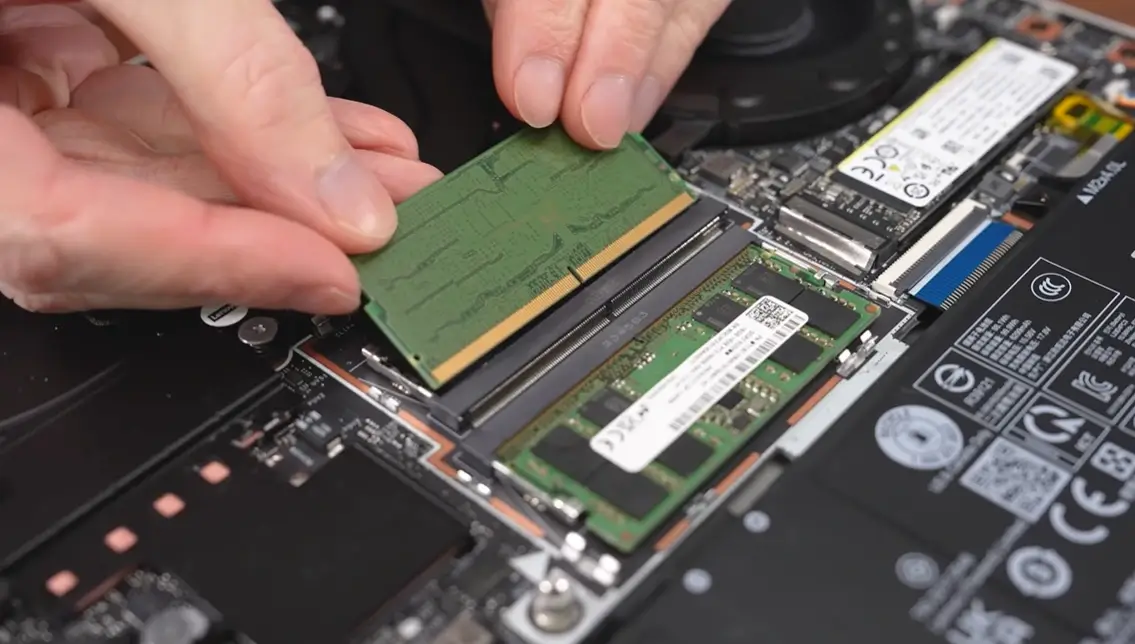
One of the best laptop upgrade ideas for 2026 is increasing RAM.
If your laptop has only 8GB of memory, moving to 16GB RAM can make a noticeable difference for everyday multitasking. Users who regularly work with large spreadsheets, programming environments, browser tabs, virtual machines, creative applications or AI tools may benefit from 32GB or more.
Who should consider a RAM upgrade?
A RAM upgrade is particularly useful for:
- University students
- Researchers
- Programmers
- Content creators
- Business professionals
- Data analysts
- Photographers
- Video editors
- Users who keep many browser tabs open
- People working with local AI applications
For ordinary web browsing and document editing, 16GB is generally a more comfortable target than 8GB in 2026.
Check compatibility first
Before buying RAM, identify:
- Your exact laptop model
- Maximum supported memory
- RAM type
- RAM speed
- Number of available slots
- Whether the existing memory is soldered
Do not assume that every laptop supports replaceable RAM.
2. Replace an Old SSD With a Faster or Larger One
If your laptop still uses an older SSD with limited capacity, storage is another excellent upgrade opportunity.
A modern NVMe SSD can provide fast boot times, quicker application launches and more responsive file transfers when compared with older storage technologies.
For many European users, moving from a 256GB drive to a 1TB SSD may be more useful than buying an entirely new laptop.
Recommended storage strategy for 2026
For general productivity:
512GB–1TB SSD
For professionals and creators:
1TB–2TB SSD
For large video, photography or research datasets:
2TB+ SSD, potentially combined with external storage.
Remember that SSD compatibility varies. Some laptops use M.2 NVMe drives, while older machines may use 2.5-inch SATA drives.
3. Upgrade the Battery
Battery degradation is one of the most common reasons an otherwise usable laptop starts feeling old.
If your laptop originally lasted eight hours but now struggles to reach two or three hours, replacing the battery could dramatically improve its usability.
A battery replacement can be particularly worthwhile for:
- Students
- Remote workers
- Frequent travellers
- Commuters
- Business users
- Digital nomads
- People who work from cafés or libraries
Instead of replacing an entire laptop, a new battery may restore much of its original portability.
Check battery health before replacing it
On Windows, you can generate a battery report using built-in system tools. Laptop manufacturers may also provide battery-health diagnostics.
Before purchasing a replacement, verify the exact battery model and use a reputable supplier or authorised repair service.
4. Improve Cooling and Thermal Performance
An older laptop may become slower because of heat rather than insufficient processing power.
Dust buildup, blocked ventilation, aged thermal paste and worn cooling fans can cause higher temperatures. Modern processors may reduce their clock speeds when temperatures become excessive.
Cleaning the cooling system can therefore be a surprisingly effective laptop performance upgrade.
Consider:
- Cleaning air vents
- Cleaning internal fans
- Replacing thermal paste where appropriate
- Checking fan operation
- Using the laptop on a hard surface
- Avoiding blocked ventilation
- Replacing a defective fan
If you are uncomfortable opening your laptop, a professional repair shop can perform the maintenance.
5. Add a Better External Monitor
Not every laptop upgrade has to involve opening the laptop.
For professionals working from home, one of the highest-value upgrades may be an external monitor.
A larger display can make multitasking, spreadsheets, coding, research and content creation much easier.
Consider a 27-inch monitor
For many users, a 27-inch QHD monitor offers a useful balance between screen size, resolution and desk space.
Creative professionals may prefer:
- Higher colour accuracy
- OLED technology
- 4K resolution
- Wide-gamut colour support
Gamers may prioritize:
- High refresh rates
- Low response times
- Adaptive sync
- Strong GPU compatibility
A monitor can also allow you to keep using an older laptop for several more years.
6. Turn Your Laptop Into a Desktop Workstation
If you mostly work from home, a docking station can transform a laptop into a desktop-style workstation.
With one connection, a compatible USB-C or Thunderbolt dock can potentially connect:
- Monitor
- Keyboard
- Mouse
- Ethernet
- External SSD
- Webcam
- Speakers
- Headset
- Other USB devices
This is especially useful for hybrid workers who frequently move between home and office.
Instead of maintaining two computers, you can use one laptop as the central machine.
7. Upgrade Your Wi-Fi Experience
Sometimes the laptop is fast enough but the internet connection makes it feel slow.
If your laptop supports a replaceable Wi-Fi card, upgrading to a newer compatible wireless standard may improve connectivity. However, many modern laptops have wireless components that are soldered or otherwise difficult to replace.
You should therefore check compatibility before purchasing anything.
Another option is a modern USB Wi-Fi adapter, although this can introduce additional cost and may not provide the same integration as an internal solution.
For home users, upgrading the router or mesh Wi-Fi system can sometimes produce a bigger improvement than modifying the laptop itself.
8. Add an External SSD
An external SSD is one of the simplest laptop upgrades because it requires no internal modification.
It can be used for:
- Photo libraries
- Video projects
- Research datasets
- Backups
- Games
- Documents
- Business files
- Archived projects
For European students and professionals who frequently move between locations, a compact external SSD can also make data portability easier.
However, never treat a single external drive as your only backup. Important files should ideally exist in more than one location.
9. Upgrade Your Laptop’s Connectivity
Older laptops sometimes lack the ports needed by modern accessories.
Instead of replacing the computer, consider using a USB-C hub or docking station.
Depending on compatibility, you may gain access to:
- HDMI
- DisplayPort
- USB-A
- USB-C
- Ethernet
- SD card readers
- Audio connections
This can be especially valuable for photographers, researchers, office workers and students.
Before buying a hub, verify what your laptop’s USB-C port actually supports. Not every USB-C port supports video output, high-speed data or charging.
10. Improve Your Keyboard and Ergonomics
A laptop’s built-in keyboard is convenient, but it is not always ideal for long working sessions.
A quality external keyboard and mouse can make a major difference for people who spend several hours each day writing, programming or researching.
You could combine your laptop with:
- Mechanical keyboard
- Ergonomic keyboard
- Wireless mouse
- Vertical mouse
- Laptop stand
- External monitor
- Adjustable desk
This creates a more comfortable workstation without replacing the computer itself.
11. Upgrade Your Laptop for AI Work
Artificial intelligence is becoming an increasingly important consideration when choosing or upgrading a laptop in 2026.
Modern AI PCs may include dedicated hardware such as an NPU (Neural Processing Unit) designed for certain AI workloads.
However, not every laptop needs an NPU.
If you mainly use cloud-based services such as online AI assistants, the local AI hardware inside your laptop may not be the most important factor.
Local AI users have different requirements. Running models directly on a laptop can benefit from:
- More RAM
- A capable CPU
- A powerful GPU
- Fast SSD storage
- Adequate cooling
For researchers, developers and advanced users, GPU memory can become particularly important when working with local AI models.
12. Improve Your Laptop for Gaming
Gaming laptop upgrades depend heavily on the machine’s architecture.
RAM and SSD upgrades are often possible, but CPU and GPU upgrades are generally not available on conventional laptops.
Therefore, before spending money, determine whether your laptop has:
- Replaceable RAM
- Replaceable SSD
- Upgradeable Wi-Fi
- Adequate cooling
- An external GPU option, where supported
For many gaming laptops, increasing RAM and installing a larger SSD are the most practical internal upgrades.
If the GPU is the main bottleneck, however, buying a new laptop may make more sense.
13. Upgrade Your Operating System
Hardware is only part of laptop performance.
An older operating system, unnecessary startup programs, outdated drivers and poorly managed storage can make a laptop feel slower.
For Windows users, check whether your machine meets the requirements for the operating system version you want to use.
You should also:
- Remove unnecessary applications
- Disable unnecessary startup programs
- Install security updates
- Update drivers where appropriate
- Keep adequate free storage
- Review background processes
- Maintain reliable backups
Avoid installing questionable “PC booster” applications that promise dramatic performance improvements.
14. Consider a Clean Operating System Installation
If your laptop has accumulated years of software, temporary files and unnecessary applications, a clean installation can make it feel considerably fresher.
Before doing this:
- Back up important files.
- Verify that your passwords are accessible.
- Check your cloud synchronization.
- Confirm application licences.
- Download required drivers if necessary.
- Create recovery media when appropriate.
A clean installation does not increase the physical processing power of a laptop, but it can eliminate software clutter.
15. Use Cloud Storage More Strategically
You do not necessarily need a huge internal SSD if most of your files can be stored securely elsewhere.
Cloud storage can help reduce local storage pressure, especially for:
- Documents
- Photos
- Collaborative projects
- Academic research
- Business files
However, cloud storage should complement rather than completely replace a backup strategy.
For important research, business or personal files, maintain independent backups.
16. Upgrade Your Webcam and Microphone
Remote work and online education remain important use cases for laptops.
If your built-in webcam produces poor image quality, an external webcam may provide a significant improvement.
Likewise, a dedicated USB microphone can make online meetings, lectures, interviews, podcasts and presentations sound much better.
For researchers conducting online interviews, this can be particularly valuable.
17. Add a Better Laptop Stand
A laptop stand is one of the cheapest upgrades you can make.
Raising the screen closer to eye level can improve your desk setup, particularly when the laptop is being used alongside an external keyboard and mouse.
It can also help with airflow on some designs, although you should not assume that every stand will dramatically reduce temperatures.
18. Consider a Repairability-First Upgrade Strategy
Europe is increasingly emphasizing product longevity, repair and reuse.
The EU’s broader repair framework is particularly relevant in 2026 because member states are expected to apply the Directive on repair of goods from 31 July 2026. (European Commission)
The European Commission’s Joint Research Centre has also highlighted the environmental cost of increasing electronic equipment consumption and the importance of keeping devices in use longer. (Joint Research Centre)
For European consumers, this means repairability should become part of the laptop-buying and upgrading decision.
Before buying an upgrade, ask:
- Can the component be replaced?
- Are spare parts available?
- Is the repair documented?
- Is the component proprietary?
- How expensive is the replacement?
- Can an independent repair shop perform the work?
- How long is the manufacturer likely to support the device?
A laptop that costs slightly more but can be repaired and upgraded for years may ultimately offer better value.
19. Buy a Refurbished Laptop Instead of a Brand-New One
Sometimes upgrading your current laptop is not economical.
If the processor, motherboard or display is fundamentally inadequate, a refurbished business-class laptop may be a better option than purchasing a brand-new premium model.
A refurbished device can provide:
- Better specifications for the money
- Lower upfront cost
- Potentially longer usable life
- Access to business-class hardware
- Reduced electronic waste
But check the warranty, battery condition, keyboard layout and upgradeability carefully.
European buyers should also confirm the seller’s return and consumer-protection terms.
20. Don’t Upgrade Everything at Once
One of the biggest mistakes people make is replacing components that do not actually need replacement.
Instead, identify the bottleneck.
For example:
Laptop feels slow when opening applications:
→ Consider SSD health, storage capacity and RAM.
Laptop slows down during multitasking:
→ Consider increasing RAM.
Laptop shuts down or becomes extremely hot:
→ Investigate cooling and battery health.
Laptop is fast but cannot last through a workday:
→ Consider battery replacement.
Laptop is uncomfortable for office work:
→ Add monitor, keyboard, mouse and stand.
Laptop cannot handle demanding games or 3D workloads:
→ Check whether a new machine is more economical.
This approach can save hundreds of euros.
Laptop Upgrade Costs in Europe: Where Should You Spend Your Money?
Upgrade prices vary considerably between countries, brands and laptop models. Labour costs can also differ between major cities and smaller towns.
Rather than focusing solely on the cheapest component, consider cost per additional year of useful life.
For example, if a €100 upgrade allows you to continue using a laptop for another two years, that may be a better investment than spending €1,000 on a new machine you do not actually need.
A practical priority order
For many users, consider upgrades in this order:
1. SSD/storage
2. RAM
3. Battery
4. Cooling/maintenance
5. External monitor and peripherals
6. Connectivity
7. Other specialized components
The exact order depends on the laptop and your workload.
Laptop Upgrade Ideas by User Type
For European Students
Students should prioritize affordability and portability.
Good upgrades include:
- 16GB RAM
- 512GB–1TB SSD
- Battery replacement
- External monitor
- USB-C hub
- Laptop stand
A reliable 13–14-inch laptop with a good battery can be more useful than an expensive performance machine.
For Remote Workers
Remote professionals should focus on ergonomics and connectivity.
Consider:
- External monitor
- Docking station
- Keyboard
- Mouse
- Webcam
- Microphone
- Ethernet connection
- External SSD
For Researchers
Researchers often benefit from:
- More RAM
- Larger SSD
- External backup drive
- External monitor
- Reliable webcam and microphone
- Strong Wi-Fi or Ethernet
- Cloud storage
If you work with large datasets, RAM and storage capacity can become particularly important.
For Creators
Video editors, photographers and designers should consider:
- 32GB+ RAM
- Fast 1TB–2TB SSD
- High-quality external monitor
- External SSD
- Powerful GPU where supported
- Fast card reader
For Gamers
Gaming users should prioritize:
- RAM capacity
- SSD capacity
- Cooling
- Display refresh rate
- GPU capability
Remember that laptop GPUs generally cannot be upgraded like desktop graphics cards.
When Should You Stop Upgrading Your Laptop?
Not every laptop should be upgraded.
A new laptop may make more financial sense if:
- The motherboard is failing.
- The CPU is too old for your workload.
- The GPU cannot handle your applications.
- The display is severely damaged.
- Replacement parts are unavailable.
- The battery, keyboard and storage all need replacement simultaneously.
- Repair costs approach the price of a replacement laptop.
- The machine no longer receives necessary security updates.
- You need capabilities that its architecture cannot provide.
The key is to calculate the total upgrade cost, including parts and labour.
If you need €400–€600 of repairs on a very old laptop, putting that money toward a newer machine may be the smarter decision.
Final Thoughts: The Smartest Laptop Upgrade in Europe for 2026
The best laptop upgrade ideas for Europeans in 2026 are not necessarily the most expensive ones.
For many users, the smartest strategy is to identify the single biggest limitation and address it first. A RAM upgrade, SSD replacement, battery replacement or cooling service can potentially extend a laptop’s useful life for years.
At the same time, European consumers have increasing reason to think about repairability, durability and long-term ownership rather than treating laptops as disposable technology. The EU’s broader repair policy is moving toward making repair and reuse easier, while European policymakers are paying greater attention to the environmental impact of electronic equipment. (Joint Research Centre)
So before purchasing a new laptop in 2026, ask a simple question:
“Does my laptop actually need to be replaced, or does it just need the right upgrade?”
If the processor and motherboard are still capable, a carefully selected combination of RAM, SSD storage, battery replacement, cooling maintenance and better peripherals may give an older laptop a surprisingly long second life.
For many European users, that can mean lower costs, less electronic waste and a laptop that remains productive well beyond 2026.
Frequently Asked Questions
What is the best laptop upgrade in 2026?
For many users, increasing RAM or replacing an aging/undersized SSD provides the most noticeable improvement. The best choice depends on the laptop’s existing specifications and the specific performance problem.
Is 8GB RAM enough for a laptop in 2026?
It can still work for basic tasks, but 16GB is a more comfortable target for many users who multitask, study, work remotely or use demanding applications.
Is it worth upgrading an old laptop?
Yes, if the processor, motherboard and display are still adequate and the upgrade cost is reasonable. SSD, RAM, battery and cooling upgrades can substantially extend useful life.
Should I buy a new laptop or upgrade my old one?
Compare the cost of the required upgrades with the price of a replacement machine. If the main components are still capable, upgrading may be more economical. If several major components are failing, replacement may make more sense.
Are laptop upgrades becoming more important in Europe?
Repairability and product longevity are becoming increasingly important in European technology policy. The EU’s repair framework is designed to encourage repair and reuse, with member states applying the repair directive from July 2026. (European Commission)
What should I upgrade first on an old laptop?
Start by identifying the bottleneck. For general sluggishness, check RAM and storage; for poor battery life, consider the battery; for overheating, investigate cooling; and for poor productivity, consider external peripherals and a monitor.
READ MORE:
Best Smartphones Under €500 in 2026: The Complete Guide for Europeans
iPhone 18 Pro, Pro Max: Release Date, Price, Features and the Foldable iPhone Explained